
Cancel an Activity
The Loyalty platform allows you to cancel a Member Activity. If applicable, the platform will automatically make any necessary adjustments to the Metrics that the Member earned from the canceled Activity.
You can cancel an Activity from two different tabs on the Member Profile screen: the Activities tab or the Metrics tab.
Cancel an Activity from the Activities Tab
To cancel an Activity from the Activities tab of the Member Profile screen:
-
Select Members from the top navigation bar, then select CSR > People from the side navigation menu. The People screen is displayed.
-
On the People screen, search for and select the desired Member (see
-
Select the Activities tab.
-
Optionally apply a filter to limit the Activities displayed on the screen; see Tab Overview - Activities for more information on the filter options.
-
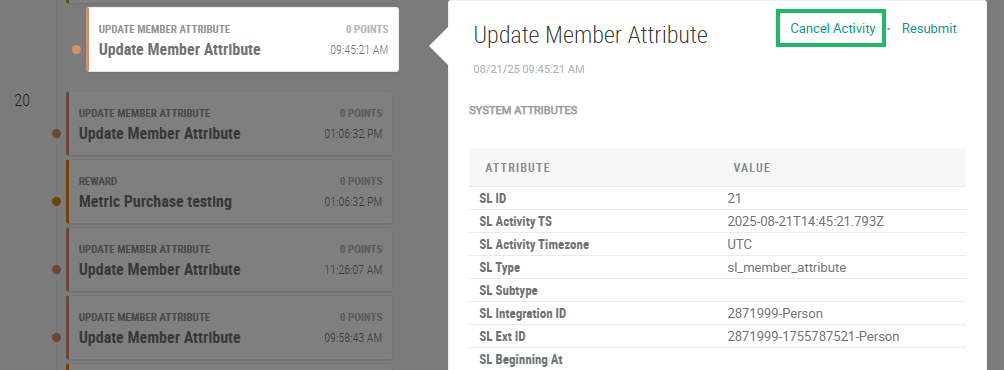
Click the desired Activity within the timeline. The platform displays a pop-up window with the full Activity details.
-
Within the details pop-up window, click Cancel Activity. The Cancel Activity pop-up window is displayed.
-
In the Comment field, optionally enter an explanation for why you are canceling the Activity.
-
Click Submit.
Cancel an Activity from the Metrics Tab
To cancel an Activity from the Metrics tab of the Member Profile screen:
-
Select Members from the top navigation bar, then select CSR > People from the side navigation menu. The People screen is displayed.
-
On the People screen, search for and select the desired Member (see
-
Select the Metrics tab.
-
Optionally apply a filter to limit the Activities displayed on the screen; see Tab Overview - Metrics for more information on the filter options.
-
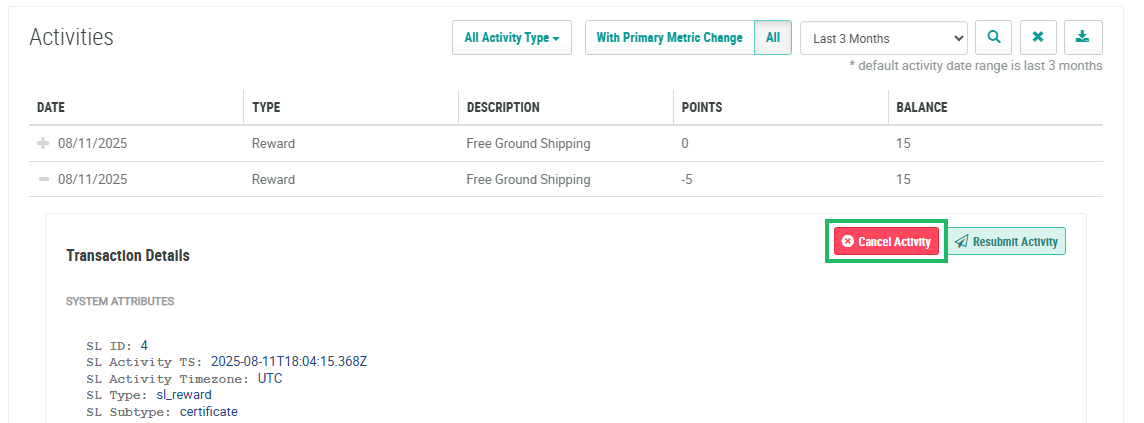
Click the Expand icon next to the desired Activity. The platform shows the full details of the Activity.
-
Within the expanded Activity details, click Cancel Activity. The Cancel Activity pop-up window is displayed.
-
In the Comment field, optionally enter an explanation for why you are canceling the Activity.
-
Click Submit.
